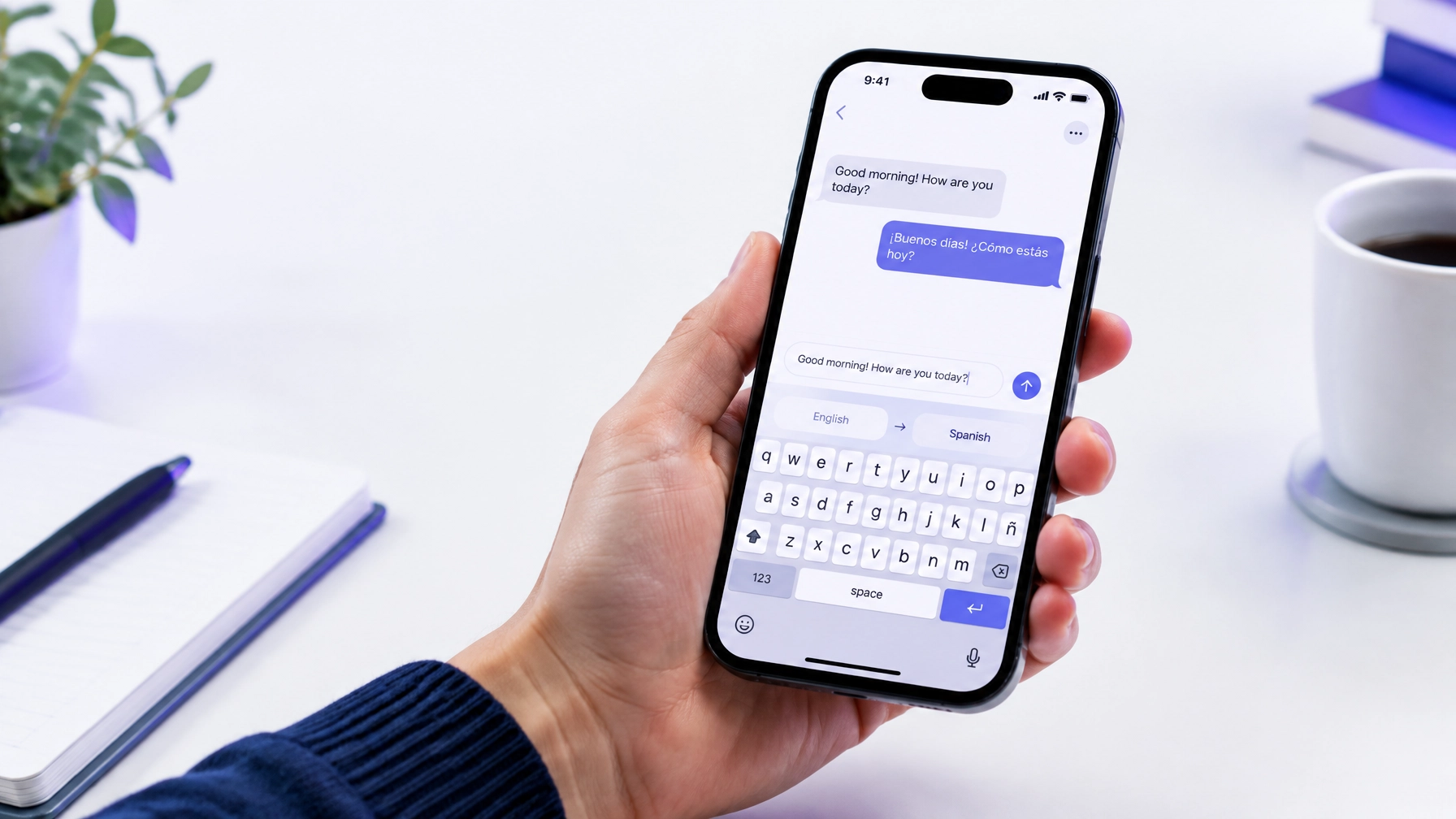
A translation keyboard lets you write in one language and convert your message without leaving the app you are using. On iPhone, this can help you respond in messaging apps, write emails, and communicate on social platforms with fewer steps.
GalaxyTranslate’s keyboard works inline in apps such as WhatsApp, Instagram, Messages, Telegram, and Gmail. Type or paste your message, choose the translation language, and insert the translated text into the same conversation.
“Any app” has limits. The keyboard works in text fields that allow third-party keyboards. Some secure fields and apps may block them.
What a translation keyboard does
A translation keyboard is an iPhone keyboard extension with a translation feature. After you add it and switch to it in a text field, you can use its translation controls while composing.
With GalaxyTranslate, you can translate inline without switching to a separate translation app. This is useful when you are replying to a customer, confirming travel details, or writing to someone in another language.
GalaxyTranslate supports 20+ languages on Free. Pro unlocks 120+ languages. Language availability can depend on your plan and the language pair you select.
A translation keyboard is different from changing your iPhone’s system language. It is also different from translating a message you have already received. The keyboard helps you prepare text to send. For incoming messages, use a supported translate feature or copy the text into a translation tool.
Add GalaxyTranslate to your iPhone keyboard
GalaxyTranslate requires iOS 18.4 or later on iPhone or iPad. Install the app before adding its keyboard.
- Open Settings.
- Select General, then Keyboard.
- Select Add New Keyboard.
- Choose GalaxyTranslate AI.
- If prompted, allow the access required for keyboard translation.
Apple’s keyboard setup guide explains how to add and switch keyboards. Follow any access prompts shown on your device or in GalaxyTranslate. Review the app’s privacy policy before using a third-party keyboard for sensitive information.

Translate while composing a message
After setup, open an app with a standard text field and select the message box. Switch to GalaxyTranslate using the keyboard or globe key. If another keyboard is active, touch and hold the keyboard-switch key and select GalaxyTranslate.
Then:
- Enter or paste your message.
- Choose the target language.
- Start the translation from the keyboard.
- Review the translated text.
- Insert it into the message field.
- Check names, numbers, dates, and other important details before sending.
The translated text stays in the app where you started writing. You can use this workflow in supported chat, social, and email apps without opening a separate translation app.

Use it for chats, email, and business messages
Customer and business chats: Draft a reply in your preferred language, translate it, and review the message before sending. Short, direct sentences are easier to check and adjust.
Email: Use the keyboard while composing in Gmail or another supported email app. Review the subject line, names, dates, prices, and any commitments separately.
Social messages: Write replies in apps such as Instagram or Telegram, then translate within the keyboard. App support depends on whether the text field permits a third-party keyboard.
Travel messages: Ask for directions, confirm a booking, or message a host in another language. For offline trips, GalaxyTranslate also offers offline mode with downloaded language packs. Check the relevant language pack before relying on offline access.
For more travel workflows, see our guide to translation apps for travel and live conversations. If you need to speak with someone by phone, read how to translate a phone call in real time.
What to check before sending
A keyboard translation is a draft, not a guarantee that every nuance or context is captured. Review the result before you send it, especially when a message contains business terms, legal language, medical information, or a specific tone.
Check these items:
- Names and identifiers: Confirm spelling, account details, and company names.
- Numbers and dates: Verify quantities, times, prices, and deadlines.
- Tone: Make sure the message is appropriately formal or direct.
- Meaning: Check that the translated version preserves your intended request or commitment.
- Language selection: Confirm the source and target languages before inserting the text.
For contracts, legal notices, or high-impact business communication, have a qualified person review the final text when needed. A translation keyboard is a convenient writing aid, not a substitute for professional review in every situation.
Keyboard access and privacy
A third-party keyboard runs as an extension on iPhone. Apple explains that custom keyboards can be used in many text fields, but passcode and secure text fields are excluded. An app can also prevent third-party keyboards from being used. See Apple’s security information about extensions and custom keyboards.
Translation features may require the keyboard access shown during setup. Access settings and data handling can vary by app and feature. Before entering confidential information, review the app’s disclosures and privacy policy. Avoid typing passwords, payment details, or sensitive personal information into a translation keyboard.
If the keyboard is not available in a particular field, use the app’s own translation option or open GalaxyTranslate separately. Keep the standard iPhone keyboard enabled so you can switch back when needed.

More translation tools in GalaxyTranslate
The keyboard is one part of GalaxyTranslate. The app also includes voice translation, camera and image translation, offline mode with downloaded language packs, Live Transcription, and Phone Interpreter.
If you are learning a language, use the keyboard to check short phrases as you write. See our guide to using a translation app to support language learning.
Compare available options on the GalaxyTranslate pricing page or view GalaxyTranslate Pro. Free includes 20+ languages; Pro unlocks 120+.
Frequently asked questions
Is there a translation keyboard for iPhone?
Yes. GalaxyTranslate provides a keyboard extension for iPhone and iPad. Add it in Settings, then select it from the keyboard switcher in a supported text field. The app requires iOS 18.4 or later.
Can I translate messages in WhatsApp or Instagram without switching apps?
GalaxyTranslate can translate inline in supported apps, including WhatsApp and Instagram. Open the message field, switch to the GalaxyTranslate keyboard, and use its translation controls. An individual app may limit third-party keyboard access.
Does the keyboard translate every word automatically as I type?
You enter or paste a message, then start the translation from the keyboard without leaving the app. The translated text appears for you to review before you insert it into the message field.
How many languages are available?
GalaxyTranslate Free includes 20+ languages. Pro unlocks 120+ languages. Check the app for availability of your required language pair.
Can I use a translation keyboard for passwords or sensitive information?
Do not use a translation keyboard to enter passwords, payment information, or other sensitive details. Secure fields may block third-party keyboards. Review the app’s privacy disclosures before using it for confidential messages.
Download GalaxyTranslate
Install GalaxyTranslate from the App Store. The app is free to download and requires iOS 18.4 or later. Add the keyboard, select it in a supported app, and translate as you compose.
Leave a Reply