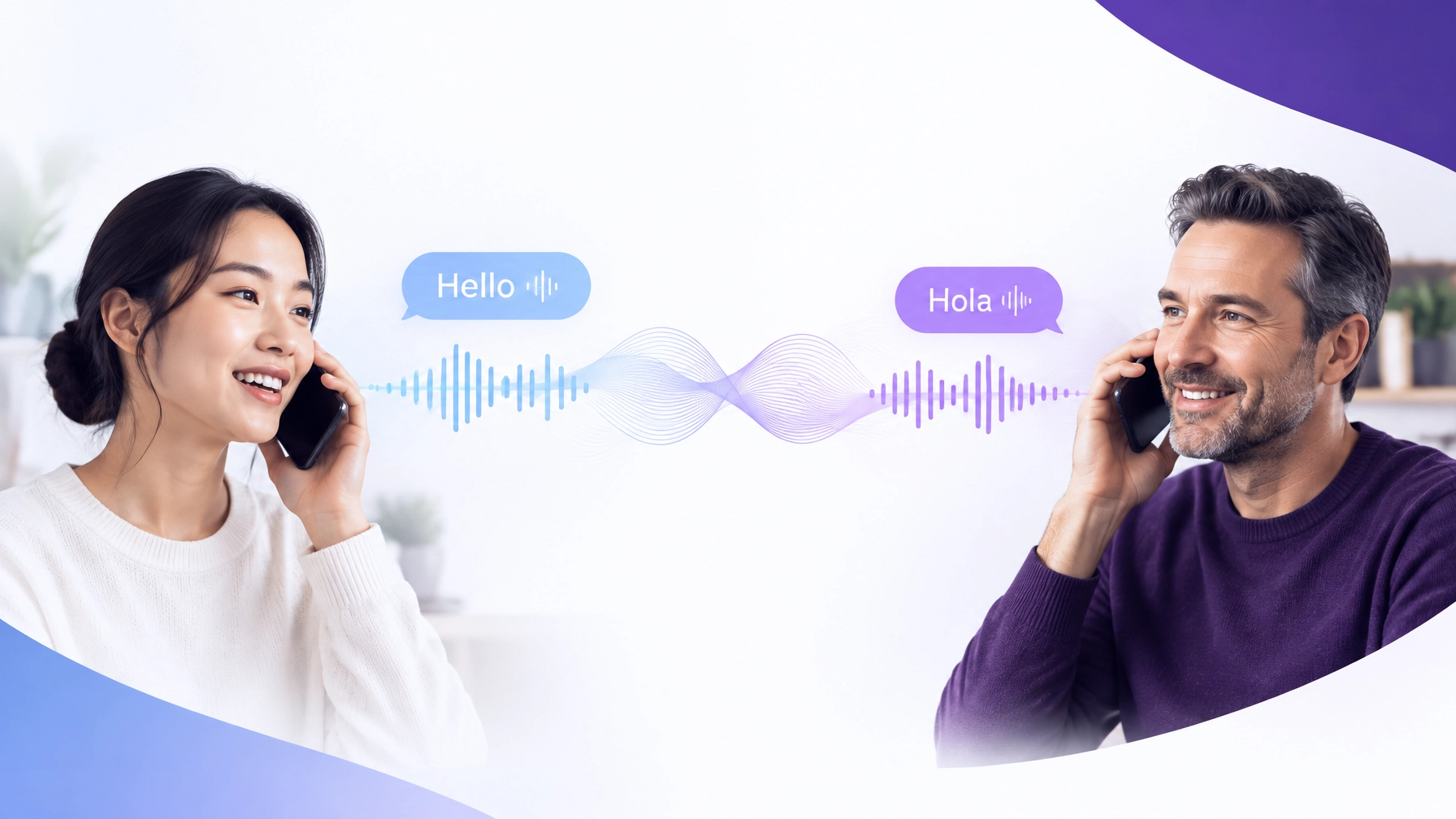
If you need to speak with someone who uses another language, you can translate the phone call in real time. The other person does not always need to install an app, create an account, or use special hardware.
You can use:
- A phone with built-in call translation.
- A carrier translation service.
- A dedicated phone call interpreter.
- A conference-based translation service such as GalaxyTranslate Phone Call Interpreter.
The best option depends on your phone, language pair, call type, and whether you need a personal or business workflow.
Use GalaxyTranslate to translate a phone call
GalaxyTranslate provides a phone-based interpreter for live, two-way conversations. You call a dedicated GalaxyTranslate number, join a conference room, and speak in your selected language.
The other participant can join by phone. They do not need to install the GalaxyTranslate app.
How the GalaxyTranslate call interpreter works
- Dial the GalaxyTranslate number provided by your administrator.
- Select your language if prompted.
- Enter the conference room number followed by
#. - Ask the other participant to join the same room.
- Speak normally.
- Listen to the translated audio during the call.
Registered callers can use a faster setup. GalaxyTranslate recognises the registered phone number and applies the caller’s preferred language. If a default conference room is assigned, the caller can connect without navigating additional menus.
Unregistered callers can use guest access. The current menu supports:
- English.
- Spanish.
- French Canadian.
- Russian.
The system provides translated audio during the call. There is normally a short delay of approximately one to three seconds. Speak in clear, complete phrases to support faster translation.

What you need before starting
Prepare the following information:
- The GalaxyTranslate phone number.
- Your preferred language.
- The other participant’s preferred language.
- The conference room number.
- A phone connection with clear audio.
For regular use, register your phone number in your GalaxyTranslate profile or ask an administrator to register it. Include the country code when adding the number.
Administrators can also set:
- A default language.
- A default conference room.
- Monthly minute allocations.
- User access and plan status.
- Audio preferences.
Review GalaxyTranslate pricing to select the appropriate plan for personal, business, or team use.
How to translate a phone call on a supported smartphone
Some newer smartphones include live call translation in the native phone application. In these cases, the other person does not need to install an app.
Availability depends on:
- Phone model.
- Operating system version.
- Region.
- Supported languages.
- Whether the feature requires an internet connection.
- Whether the feature works with your selected calling application.
Google Pixel
Google’s Live Translate instructions for phone calls apply to supported Pixel devices, including Pixel 10 and later models.
To start a translated call:
- Open the Phone app.
- Start a call.
- Tap Call Assist.
- Select Live translate.
- Choose the language used by the other participant.
- Tap Done.
On the Pixel 10 series, the feature may appear as Voice translate. Google states that supported calls can translate speech in real time and may work without an internet connection. Language availability varies by device.
Samsung Galaxy
Samsung provides live translation through Call assist on selected Galaxy phones. The feature is available on selected devices running Android 14 with One UI 6.1 or later.
To enable the feature:
- Open Settings.
- Tap Galaxy AI.
- Tap Call assist.
- Tap Live translate.
- Turn on the feature.
- Select or download the required languages.
To translate a call:
- Open the Phone app.
- Start or answer a call.
- Tap Call assist.
- Tap Live translate.
- Confirm the languages.
- Continue speaking normally.
Samsung also supports live translation in some third-party calling applications. Review the Samsung Live translate call instructions before relying on the feature for an important call.
Use one live translation system at a time. If both callers activate separate translation features, the audio can be translated more than once.
iPhone
Apple provides Live Translation in the Phone app on supported devices and regions. The feature can notify both participants that the call is being translated.
To use it:
- Open the Phone app.
- Start a call.
- Tap More.
- Tap Live Translation.
- Select Choose Language if required.
- Tap Start Translation.
Apple states that the feature can translate both sides of a call and display an on-screen transcription. Availability varies by region, device, language, and Apple Intelligence support. Check the current Apple Live Translation instructions before use.

How real-time voice translation works
Live phone call translation normally uses three processing steps:
- Speech recognition: The system detects speech and converts it into text.
- Machine translation: The system translates the message into the selected language.
- Speech generation: The system converts the translation into spoken audio.
The translated audio is sent back into the call. Both participants can continue speaking in their preferred language.
Translation is not always instantaneous. A brief delay is normal. Background noise, overlapping speech, accents, weak connections, and specialist terms can affect the result.
For clearer translation:
- Speak one person at a time.
- Use short, complete sentences.
- Avoid speaking over the other person.
- Say names, addresses, and numbers slowly.
- Confirm important details.
- Repeat information when the translated audio is unclear.
- Use the same language selection throughout the call.
For legal, medical, financial, or safety-critical calls, confirm whether a qualified human interpreter is required. Automated translation can support communication, but it should not replace professional interpretation when accuracy has legal or safety consequences.
Translate over the phone for business calls
A phone interpreter can help small businesses handle calls without assigning a bilingual employee to every conversation.
Common use cases include:
- Customer support.
- Appointment scheduling.
- Order and delivery questions.
- Insurance and service inquiries.
- Supplier communication.
- Property management.
- International sales calls.
- Employee and client conversations.
GalaxyTranslate supports multiple participants in the same conference room. Each participant can speak their own language while the system provides translated audio.
Administrators can monitor active rooms and view live transcription through the Live Transcription page. The dashboard can display speech and translations with speaker labels and timestamps.
Audio settings include:
- Original + Translation: Hear the original audio and translated audio.
- Translation Only: Hear only the translated output.
These settings are useful for support teams, supervisors, and authorised call monitors.
Phone call translator options compared
| Option | App required for the other person | Best for | Main limitation |
|---|---|---|---|
| GalaxyTranslate Phone Call Interpreter | No | Business calls, conference rooms, support teams | Requires a GalaxyTranslate number and room |
| Built-in phone translation | Usually no | Personal calls on supported devices | Limited by device and language availability |
| Carrier translation | Usually no | Customers whose carrier supports the feature | Availability depends on carrier and plan |
| Translation app | Often no, depending on the service | Individual users and occasional calls | May require call routing through the app |
| Speakerphone workaround | No | Basic, temporary translation needs | Less private and less convenient |
Choose the option that matches your call. A built-in feature may be sufficient for a short personal call. A phone interpreter is more suitable when a business needs repeatable access, multiple callers, user management, and call monitoring.
View the conversation as live text
Some calls benefit from both spoken translation and on-screen text. A live transcription can help you:
- Check names and numbers.
- Follow a call in a noisy location.
- Review the translated wording.
- Identify which participant is speaking.
- Monitor a support or conference call.
- Keep a timestamped record when permitted.
GalaxyTranslate registered users can access live transcription through the web dashboard. Sign in, open the Live Transcription page, enter the conference room number, and select Join Room.
Only join rooms you are authorised to monitor. Call access and transcription may involve sensitive information. Follow your organisation’s privacy, consent, and record-retention requirements.
Start a translated phone call
Use the simplest available setup:
- Need a regular phone workflow with no app for the other person? Use GalaxyTranslate Phone Call Interpreter.
- Have a supported Pixel, Galaxy, or iPhone? Check the built-in live translation feature.
- Need team access and monitoring? Use a conference room with live transcription.
- Need help selecting a setup? Contact GalaxyTranslate.
A translated phone call starts with three settings: the caller’s language, the other participant’s language, and the connection method. Select those settings, join the call, and speak normally.
Leave a Reply